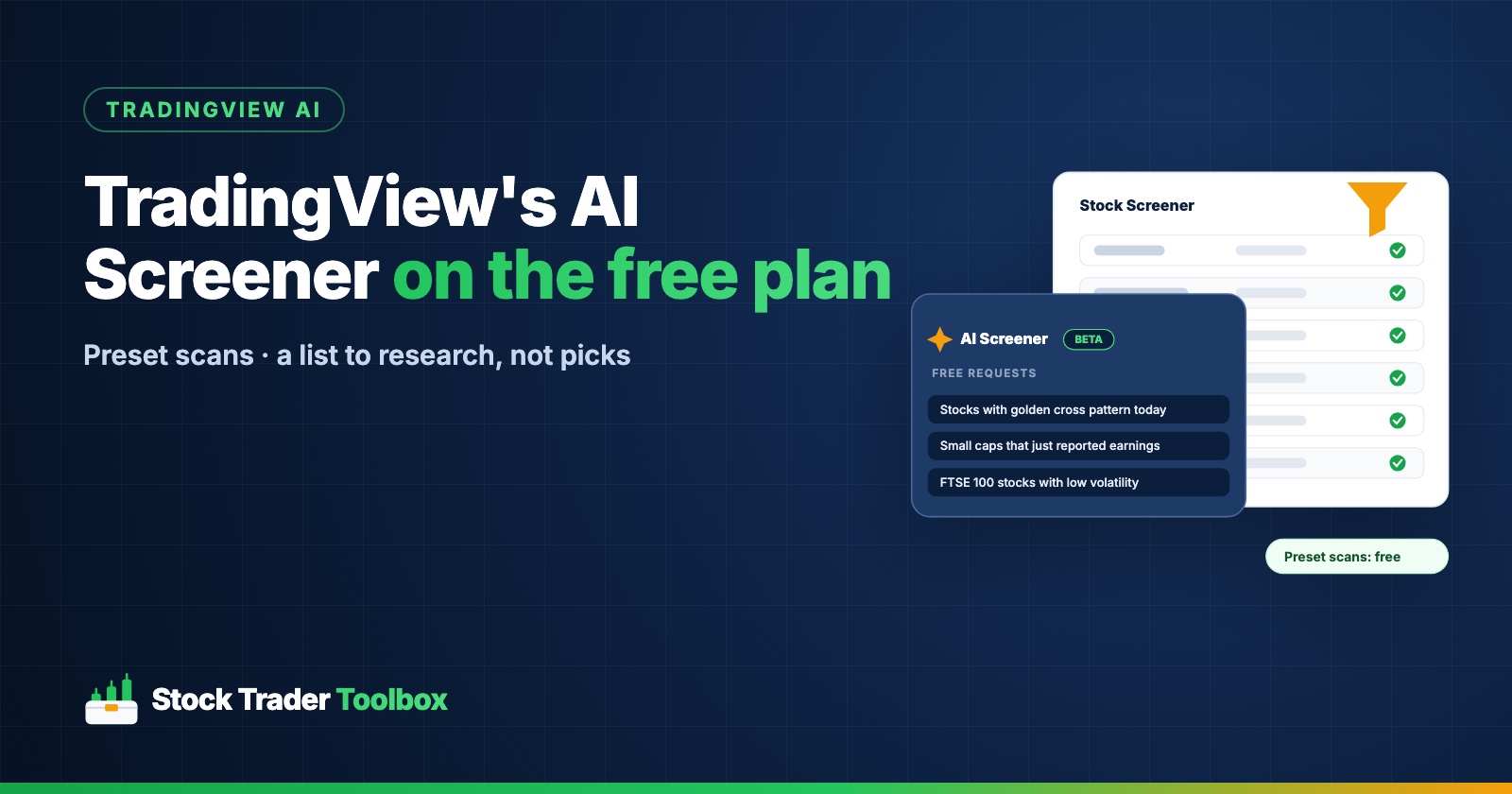
TradingView’s stock screener now has an AI button. You describe what you’re looking for in plain words, and it sets up the filters, columns and sorting for you. On the free plan you can’t type your own requests, but you do get a list of about 30 ready-made AI scans. Here’s what that list is, how to use it, and how to read the results without treating them as a shopping list.
Education, not investment advice. No stock picks here, and a screener result isn’t a recommendation. The TradingView link on this page is an affiliate link. Checked on TradingView on November 26, 2026. Disclosures.
In this guide
What the AI Screener does
A screener filters a big list of stocks down to the ones that match your conditions: market cap over a certain size, price above its 50-day average, and so on. Setting those filters by hand takes a while when you’re new, because you have to know what every field means.
The AI Screener skips that step. According to TradingView’s help center, you describe what you want, and the AI applies matching filters, picks relevant columns, and sets the sort order. TradingView’s own example: typing “golden cross in India” applies a 50/200 SMA crossover-up filter, switches the market to India, and adds moving-average columns.
A few details from the same help page:
- It’s labeled BETA in the screener, and TradingView calls it a public beta.
- It works in the Stock, Crypto and Bond screeners.
- You can open it with the AI button at the top left of the filters, or with the keyboard shortcut Shift + A.
- A new AI scan replaces the filters, columns and sorting you had before.
- An Explanation view shows why each filter was chosen, which is the most useful part for learning.
What the free plan gets
On TradingView’s plan comparison, the Basic (free) plan gets “preset scans only.” The paid plans get a monthly allowance of typed requests:
| Plan | Typed AI Screener scans | Preset scans |
|---|---|---|
| Basic (free) | None | Yes |
| Essential | 100 a month | Yes |
| Plus | 150 a month | Yes |
| Premium | 250 a month | Yes |
| Ultimate | 500 a month | Yes |
Source: tradingview.com/pricing and TradingView’s “How to use the AI Screener” help page, checked November 26, 2026. TradingView says scan limits aren’t guaranteed during the beta and may change.
Two rules from the help page are worth knowing even on a paid plan. The allowance resets on the first day of each month at 00:00 UTC. And the pre-made scans don’t count toward the monthly limit at all, so everyone can use them freely.
How to run a preset scan on the free plan
- Open the Stock Screener from TradingView’s Products menu, or go to tradingview.com/screener.
- Click the AI button at the top left of the filter row. A panel opens with “AI Screener” and a BETA label.
- Under Free Requests, pick a scan from the list. The filters, columns and sorting change to match it.
- Click the AI button again and choose Explanation to see which filters were applied and why.
- Read the filters before you read the results. That’s where the learning is.
Tip: the preset list is long. TradingView’s help page says typing a keyword in the AI box narrows the list to matching pre-made scans, which is handy for finding one like “golden cross.”
What the preset scans look like
When I checked, the Free Requests list had 30 scans. Some are plain descriptions of a filter:
- Stocks with golden cross pattern today
- Stocks with death cross pattern today
- Stocks with MACD bullish crossover on daily timeframe
- Stocks bouncing off the 50-day with volume confirmation
- Small caps that just reported earnings
- IPOs from the last 6 months above their IPO price
- FTSE 100 stocks with low volatility
- Low P/E stocks from Nikkei 225 index
Others have names written to sound exciting: “Ten-bagger candidates in minerals,” “Penny stocks with potential,” “Beaten down large caps that could bounce soon.” Those names are TradingView’s marketing copy. Underneath, each one is still just a set of filters, and none of them knows what a stock will do next. This is exactly why the Explanation view matters. Open it, look at what “potential” turned into, and you’ll see the scan for what it is.
The list can change. The golden-cross preset that Episode 1 mentions was there when I checked, but don’t be surprised if the wording shifts over time.
Read the results like a researcher
A screener filters. It doesn’t recommend. Here’s how I treat the list a scan returns:
- It’s a list of things to look up. Each row is a starting point for reading, not a conclusion.
- Check the filter, not just the name. “Golden cross today” means one condition was true at the last close. It says nothing about why, or what comes next.
- Ignore the rating columns while you learn. The default stock screener view can include an analyst rating column with labels like “Buy.” Those are other people’s opinions, and they’re not what you’re there to learn. I hide them in my videos.
- Look at one stock on a chart. Open it, add the indicator from Episode 1, and see what the scan’s condition looks like in real price history.
- Practice with fake money. If you want to see how an idea would play out, use paper trading, not your real account.
The free screener’s other limits
The AI button isn’t the only difference between free and paid screeners. TradingView’s comparison table lists these for the Basic plan:
- 1 active filter and 1 saved screen (paid plans: unlimited)
- Daily, weekly and monthly timeframes only for screener fields (paid: all timeframes)
- No adding columns, no manual filter setup, no data export, and no auto-refresh (paid: yes)
- No Pine Screener, which runs your own Pine Script indicators as screens (Essential: 30 scans, Plus: 60, Premium and Ultimate: unlimited)
That one-filter limit is the real constraint when you build screens by hand, and it’s the main reason the paid screeners feel so different.
Is it worth paying for typed scans?
If you’re learning, probably not yet. The presets cover the common ideas, and reading their Explanation teaches you how screens are built. Typed requests make sense once you know what you want to ask and you’re tired of building filters by hand. Even then, 100 scans a month on Essential is a lot for one person.
If you do want to compare plans, TradingView’s pricing page has the current details. For everything else the free plan includes, see Is TradingView Free?
Frequently asked questions
Is the TradingView screener free?
Yes. The stock, ETF and crypto screeners are on every plan, including Basic. The free version is limited to 1 active filter and 1 saved screen, with daily, weekly and monthly timeframes.
Can I use TradingView’s AI Screener on the free plan?
Partly. Basic gets the preset AI scans (the “Free Requests” list). Typing your own AI requests starts on Essential.
How many AI Screener scans do the paid plans get?
Essential 100, Plus 150, Premium 250 and Ultimate 500 a month, resetting on the first of each month at 00:00 UTC. Preset scans don’t count toward the limit. TradingView says the limits may change during the beta.
What’s the difference between the AI Screener and the Pine Screener?
The AI Screener turns a plain-English request into the screener’s built-in filters. The Pine Screener runs your own Pine Script indicators across a list of symbols, and it starts on Essential.
Can an AI stock screener tell me what to buy?
No. It filters stocks by conditions you (or a preset) define. It doesn’t know what a stock will do next, and its results aren’t recommendations.
Get one free-plan tool workflow every Tuesday in The Trade Brief.