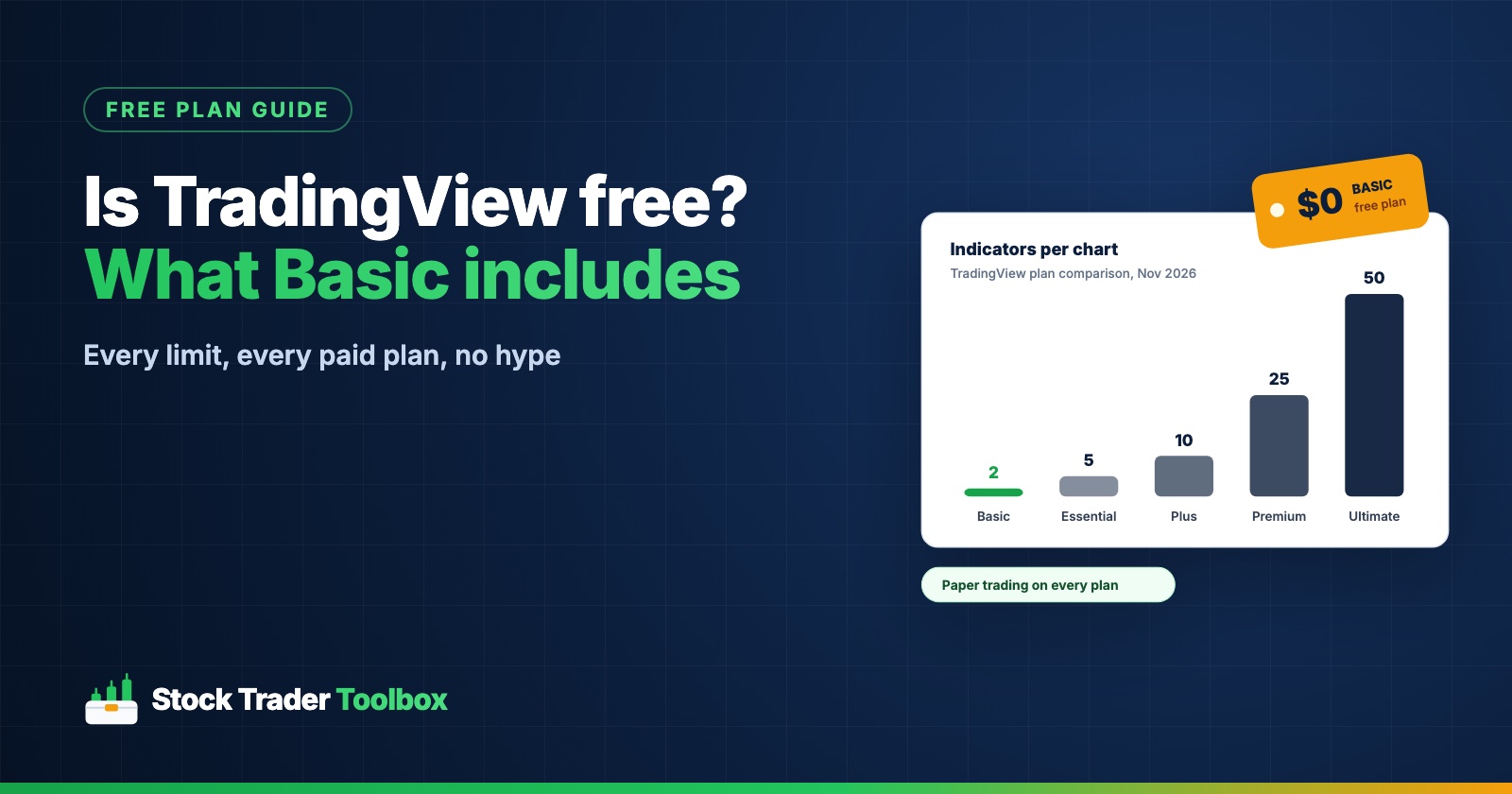
Yes. TradingView has a free plan called Basic, and you can learn a lot on it: charts, Pine Script, a screener, paper trading, and backtesting. It also has hard limits, and they show up fast. This guide walks through exactly what Basic includes, where it stops, and what each paid plan adds, straight from TradingView’s own plan comparison.
Education, not investment advice. The TradingView links on this page are affiliate links: if you buy a paid plan through one, I may earn a commission at no extra cost to you. Everything below was checked on TradingView’s pricing page on November 26, 2026. Disclosures.
In this guide
The short answer
TradingView’s Basic plan costs nothing. You get real charts for stocks, ETFs, crypto, forex and futures, the Pine Script editor for custom indicators, the stock screener, paper trading with fake money, and a basic strategy backtester. For someone learning how charting tools work, that’s plenty.
What you give up is volume. Basic allows 1 chart per tab, 2 indicators per chart, 3 price alerts that expire after a month, and one watchlist of 30 symbols. It shows ads on the charts. And a few features, like alerts on indicators and webhooks, aren’t on the free plan at all.
My take: start on Basic, and upgrade only when one specific limit keeps getting in your way. You’ll know which one it is when it happens.
What the free plan includes
Here’s the Basic column from TradingView’s plan comparison, plus the line from Essential, the cheapest paid plan, for context.
| Feature | Basic (free) | Essential (paid) |
|---|---|---|
| Charts per tab | 1 | 2 |
| Intraday timeframes | Some exchanges only | Yes |
| Indicators per chart | 2 | 5 |
| Saved chart layouts | 1 | 5 |
| Drawings per chart | 30 | Unlimited |
| Historical bars | 5,000 | 10,000 |
| Pine Script editor | Yes | Yes |
| Active price alerts | 3 (expire after 1 month) | 20 (2 months) |
| Alerts on indicators (technical alerts) | No | 20 |
| Webhook notifications | No | Yes |
| Watchlists | 1, up to 30 symbols | Unlimited, up to 1,000 symbols each |
| Stock, ETF and crypto screeners | Yes (1 active filter, 1 saved screen) | Yes (unlimited filters and screens) |
| AI Screener | Preset scans only | 100 scans a month |
| AI alert generation | Suggested alerts only | 50 |
| Paper (simulated) trading | Yes | Yes |
| Strategy backtesting | Basic report metrics | Advanced metrics, CSV and XLSX export |
| Bar replay | Daily and higher timeframes | Adds 180 days of minute data |
| Ads on charts | Yes | No |
| Customer support | Not included | Regular |
Source: tradingview.com/pricing, “Compare plans,” checked November 26, 2026. TradingView changes plans often, so confirm a detail there before you rely on it.
A few of those rows deserve a plain-English note:
- 2 indicators per chart is the limit most people hit first. A moving average and a volume indicator, and you’re full. There’s a workaround further down.
- 5,000 historical bars sounds technical. On a daily chart it’s roughly 20 years of trading days, which is plenty. On a 5-minute chart of a US stock it’s about three months of regular trading sessions, and less for crypto, which trades around the clock.
- Price alerts only. On Basic, an alert can fire when a price crosses a level you set. It can’t fire when an indicator does something, like when two moving averages cross.
- Paper trading is on every plan, Basic included. I cover it step by step in How to Paper Trade on TradingView.
Where the free plan stops
These are the limits a beginner tends to run into, roughly in the order you’ll meet them.
Two indicators per chart
TradingView counts each indicator you add, built-in or custom. Two is enough to learn on, and it forces you to think about what each one is for. It gets tight once you want a trend line, a momentum oscillator, and volume at the same time.
One chart per tab and one saved layout
You can’t put a daily and an hourly chart side by side in one tab on Basic, and you can save only one chart layout. Intraday timeframes are also limited to some exchanges on the free plan. You can still open more browser tabs, but it’s clunkier.
Three price alerts, and none on indicators
Three active price alerts covers a short list of levels you care about. They expire after a month, so you’ll recreate them. The bigger limit is that alerts tied to an indicator (“technical alerts”) and webhook notifications start on Essential.
A thin screener
The free screener works. But TradingView’s table lists only 1 active filter and 1 saved screen on Basic, with daily, weekly and monthly timeframes only. The AI Screener runs preset scans only. I go through it in TradingView’s AI Screener: What the Free Plan Gets.
Basic backtest reports
You can backtest a strategy on Basic and see the key stats. The detailed report metrics and exports start on Essential, and deep backtesting over the full price history starts on Premium. More in How to Backtest on TradingView’s Free Plan.
The paid plans, and what each adds
TradingView has four paid plans. Here’s what each one adds over the plan below it, in TradingView’s own numbers. I’m leaving prices out on purpose, because they change often and sales are frequent (more on that in the next section).
Essential
The first step up, and the one most beginners would consider. It raises you to 2 charts per tab, 5 indicators per chart, 20 price alerts plus 20 technical alerts, webhook notifications, unlimited watchlists with up to 1,000 symbols each, 10,000 historical bars, and no ads. Backtests get the advanced report metrics and CSV and XLSX export. AI features start here too: 100 AI Screener scans and 50 AI alert generations a month, and 10 requests a day to TradingView’s MCP server, which is how you connect an assistant like Claude.
Plus
4 charts per tab, 10 indicators per chart, and 100 price and 100 technical alerts. It adds multi-condition alerts, chart data export, intraday price-based charts, spread charts, 150 AI Screener scans, and 60 Pine Screener scans.
Premium
8 charts per tab, 25 indicators per chart, 400 price and 400 technical alerts, and alerts that don’t expire. Historical bars double to 20,000, and backtesting adds deep backtesting and tick-level order execution. It includes 250 AI Screener scans and unlimited Pine Screener scans.
Ultimate
16 charts per tab, 50 indicators per chart, 1,000 alerts of each kind, 40,000 historical bars, 500 AI Screener scans, AI Copilot included (it’s a paid add-on on every other plan), and the Bond Screener. TradingView also says Ultimate is the only plan available to professional users.
Prices and sales: check the page
When I checked on November 26, 2026, TradingView was running its Black Friday sale (“up to 80% off,” plus a free month), so every paid plan showed a special price. Rather than print numbers that will be wrong next month, here’s what’s useful to know:
- Paying annually saves up to 17% compared with monthly, according to the pricing page.
- Sales tax may be added depending on where you live.
- TradingView runs sales from time to time. If you’re not in a hurry, it’s reasonable to wait for one.
If you do decide to upgrade, you can see current prices on TradingView’s pricing page.
Free vs. paid: who needs what
I’m not going to tell you to upgrade. Here’s how I’d think about it instead.
- You’re learning how charts and indicators work. Basic is enough. Two indicators and paper trading cover the fundamentals.
- You want to be notified when your own indicator triggers. That needs technical alerts, which start on Essential. This is the most common real reason people upgrade.
- You compare several timeframes or symbols at once. Multiple charts per tab start on Essential (2) and grow from there.
- You want detailed backtest reports. Essential adds the advanced metrics. Deep backtesting is a Premium feature.
- You want to type your own AI Screener requests. That starts on Essential. On Basic you get the presets.
A simple test: if you hit the same limit three times in a week, look at the cheapest plan that removes it. If you’ve hit it once, keep learning on the free plan.
Get more out of the free plan
A few tricks make Basic go further.
- Combine two indicators into one script. Pine Script lets one indicator draw several things. Ask ChatGPT or Claude to merge, say, two moving averages and a crossover label into a single script, and it counts as one of your two slots. Episode 1 shows how to have AI write the script.
- Use price alerts at levels, not on indicators. If you care about a moving-average cross, check where the lines are and set a price alert near that level.
- Keep one focused watchlist. Thirty symbols is a good discipline. Most beginners follow too many.
- Practice with paper trading and bar replay. Both are on Basic. Bar replay lets you step through past daily candles as if they were happening live.
Frequently asked questions
Is TradingView free?
Yes. The Basic plan is free and includes charts, the Pine Script editor, 2 indicators per chart, 3 price alerts, one watchlist of 30 symbols, a stock screener, paper trading, and basic backtesting. Paid plans (Essential, Plus, Premium and Ultimate) raise those limits and add features.
What’s the difference between TradingView free and paid?
Paid plans add more of everything: more charts per tab, more indicators per chart, more alerts, longer price history, and features the free plan doesn’t have, such as alerts on indicators, webhooks, advanced backtest metrics, typed AI Screener requests, and no ads.
How many indicators can I use on TradingView for free?
Two per chart. You can work around it by combining several calculations into one Pine Script indicator, which counts as one.
Does TradingView’s free plan have ads?
Yes. The comparison table lists ad-free charts on the paid plans only.
Can I paper trade on TradingView for free?
Yes. Simulated (paper) trading is included on every plan, including Basic. It uses fake money, so you can practice without risking any.
What does Essential add over the free plan?
The headline changes are 5 indicators per chart, 2 charts per tab, 20 price alerts plus 20 alerts on indicators, webhooks, unlimited watchlists, no ads, advanced backtest metrics, and 100 AI Screener scans a month.
Want one tool tested like this every week? The Trade Brief is a free Tuesday email with one AI tool workflow you can try on a free plan.