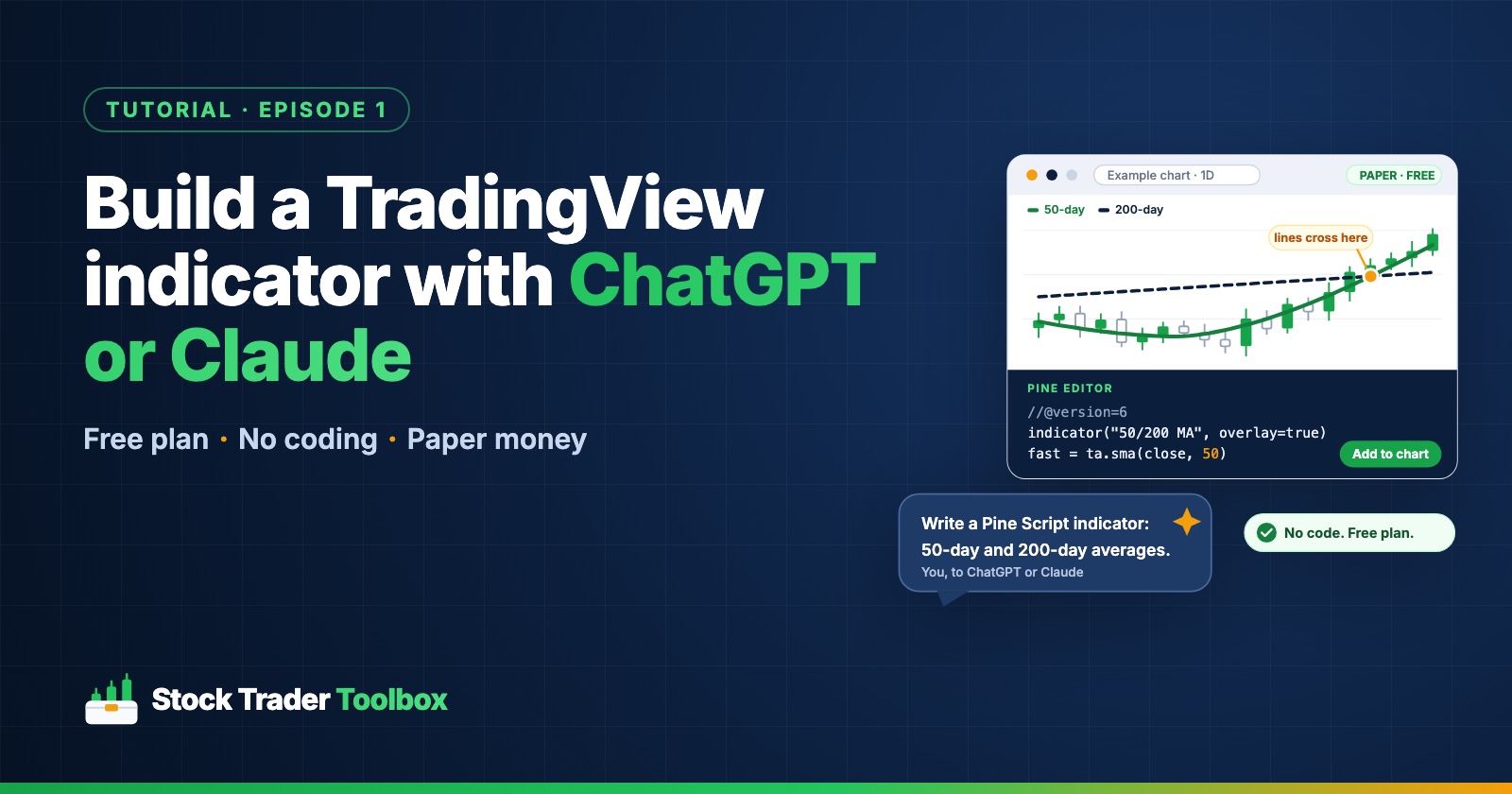
This is the companion page for Episode 1. You’ll build a custom TradingView indicator with ChatGPT or Claude, without writing code and without paying for anything. Below are the three prompts from the video, ready to copy, plus what TradingView’s free plan does and doesn’t include.
Education, not investment advice. SPY appears in the video as an example only, not a recommendation. The TradingView links on this page are affiliate links, and the narration in the video is an AI clone of my voice. Disclosures.
In this tutorial
Watch the video
The video goes live Monday, November 30.It will play right here. Subscribe on YouTube to see it first.
What you need
- A free TradingView account. Sign up at TradingView and stay on the free Basic plan.
- A free ChatGPT or Claude account. I use Claude in the video, and ChatGPT works the same way.
- About ten minutes. No coding experience.
The one rule: AI builds, it doesn’t predict
Use AI to explain things and to build things. Don’t ask a chatbot which stock to buy. It doesn’t know, and it can sound very confident while being wrong. Ask it to write code, explain a chart, or check your understanding. That’s where it’s genuinely good.
Prompt 1: ask the AI to build the indicator
Paste this into ChatGPT or Claude. It asks for Pine Script version 6, which is TradingView’s current version, and for comments in plain English so you can read what each line does.
Write a TradingView Pine Script v6 indicator for a beginner. Plot a 50-day and a 200-day simple moving average on the price chart. Color the 50-day line green when it’s above the 200-day line and red when it’s below. Add a small label where the two lines cross. Add comments that explain each line in plain English. Output only the code.
Then put the code on a chart:
- In TradingView, open a chart and switch to the daily timeframe (1D), so each candle is one day. The video uses SPY, a fund that tracks the S&P 500, because it has a long, simple history. It’s an example only.
- Open the Pine Editor at the bottom of the screen. It starts with some sample code. Select all of it and delete it.
- Paste the code the AI wrote, then click Add to chart.
You’ll see two lines: the average closing price over the last 50 days and over the last 200 days. The 50-day line changes color as it moves above or below the 200-day line, and small labels mark where they crossed. It shows one idea: whether the recent trend is above or below the longer-term trend. It’s a picture of what already happened, and it isn’t a buy or sell signal.
Tip: want different colors or lengths? You don’t need to learn the code. Go back to the chat and ask, for example: “Use blue and orange instead of green and red.” That also helps if red and green are hard for you to tell apart.
Prompt 2: when it doesn’t work the first time
AI tools still make small mistakes in Pine Script, especially when they mix up versions. When that happens, TradingView shows an error message at the bottom of the editor. Copy it and send it back with this prompt:
TradingView gave me this error: [paste the error]. Fix the script and tell me in one sentence what was wrong.
One round usually fixes it. If it takes more than two or three, start a new chat, ask again, and say “Pine Script version 6” clearly.
Prompt 3: ask what the indicator can’t tell you
This is my favorite way to use AI with charts: ask it what your tool can’t do.
Explain what this indicator shows and what it can’t tell me. What mistakes do beginners make with moving-average crossovers?
A good answer covers three things. Moving averages are built from past prices, so they always lag. When a market moves sideways, the lines can cross back and forth and mean very little. And a cross that looked meaningful in the past describes history. It doesn’t forecast anything. An indicator helps you see the data more clearly, and you still make the decisions.
What TradingView’s free plan includes
Straight from TradingView’s own plan comparison, Basic (free) column. The indicator you just built takes one of your two indicator slots.
| Feature | Free (Basic) plan |
|---|---|
| Pine Script editor | Yes (Pine Script v6) |
| Indicators per chart | 2 |
| Active price alerts | 3 (they expire after 1 month) |
| Alerts on indicators (“technical alerts”) | No, paid plans only |
| Webhook alerts | No, paid plans only |
| Paper (simulated) trading | Yes |
| Strategy backtesting | Yes, with basic report metrics |
| Watchlists | 1 list, up to 30 symbols |
| AI Screener | Preset scans only (typed requests need a paid plan) |
| AI alert generation | Suggested alerts only |
| MCP server (connect Claude to TradingView) | No, paid plans only |
Checked on TradingView’s pricing page on November 25, 2026. TradingView changes its plans often, so confirm on tradingview.com/pricing before you rely on a detail.
TradingView is also adding its own AI. In the Stock Screener there’s an AI button, and on the free plan you get a list of preset scans. One of them, “stocks with golden cross pattern today,” finds the same thing your indicator draws: the 50-day line crossing above the 200-day. Treat that list as things to look up and learn about. A screener filters. It doesn’t recommend.
Practice safely
If you want to see how an idea would have played out, use paper trading. It’s built into TradingView, it’s free, and it uses fake money. You can also set up to three price alerts on the free plan, so TradingView tells you when a price is reached and you don’t have to watch the screen.
One honest limit: on the free plan, alerts are price alerts. An alert that fires when your custom indicator does something, like when the two lines cross, needs a paid plan. That’s the most common reason people upgrade, and you can go a long way before you need it. If you do decide to upgrade, TradingView’s plans are here.
Frequently asked questions
Is TradingView free?
Yes. The Basic plan costs nothing and includes the Pine Script editor, 2 indicators per chart, 3 active price alerts, one watchlist of up to 30 symbols, and paper trading. Paid plans add more indicators per chart, alerts on indicators, and webhooks. Everything in this tutorial works on the free plan.
Can ChatGPT write a TradingView indicator?
Yes, and so can Claude, on their free plans. Name the language and version (“Pine Script v6”), ask for comments in plain English, and expect to paste an error back now and then. A simple indicator like this one usually works on the first or second try.
Can I get an alert when the moving averages cross on the free plan?
No. Free-plan alerts are price alerts. An alert on an indicator, including one you built yourself, needs a paid plan. You can still see every cross on the chart, and you can set a price alert near the level you’re watching.
Is a moving-average crossover a buy signal?
No. It shows what prices already did. Crossovers lag, and in sideways markets they flip back and forth. Use the indicator to see the chart more clearly, and don’t treat it as a decision.
Do I need to know how to code?
No. You describe what you want, paste what the AI writes, and paste any errors back. If you get curious, reading the plain-English comments in the code is a gentle way to start learning Pine Script.
Next on the channel: a closer look at TradingView’s AI Screener, including what the paid plans add. Subscribe on YouTube so you don’t miss it.